
Smartphones
iPhone
In the Photos app, tap on the image to open it. You can either tap on the ‘info’ icon ⓘ beneath it or swipe up on the image.
Android
In the Photos app, select your photo, click the three dots icon ●●● in the top right-hand corner, and select ‘Details’ from the menu that appears. Scroll to the bottom of the page to find the image size.
Technical information
This will give you the technical information for the photo, including the date it was taken, the size, and the camera settings. The size of the photograph is shown in three different ways:
- resolution – megapixels (MP)
- dimensions – width and height in pixels
- file size – megabytes (MB)
See the image for an example. This is a screenshot from an iPhone, how your screen looks may vary.

Desktops or laptops
For Macs
- Open your photo in the Preview app.
- Click on the ‘inspector’ icon ⓘ located on the panel above the photo.
- This will open a pop-up window.
- The image size is shown on the general info panel.
For PCs
- Open File Explorer and go to the folder containing your image.
- Right-click on the photo file you want to check.
- From this menu, click on ‘Properties’.
- In the Properties window, go to the ‘Details’ tab.
- The Details tab will show you your image dimensions, file size, DPI, and more.
- The dimensions in pixels for your photo are under the ‘Image’ heading.
Understanding resolution
Resolution is the level of detail contained in an image. It refers to the number of pixels in an image. It also refers to the set number of pixels a screen can display. So the higher the number, the more pixels there are; the more detail and definition you will see. Cameras with higher MPs have the potential to take much richer photographs.
We measure a digital image using its pixels, in pixels per inch (PPI). For printing, the resolution is measured using dots per inch (DPI); this refers to the tiny droplets of ink a printer uses.
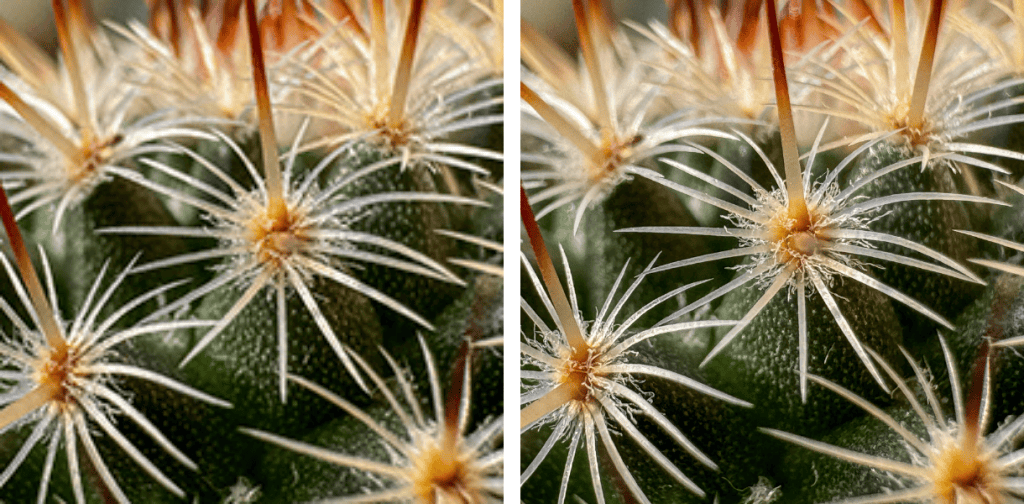
The example above of two images of a cactus provides a clear illustration of how a difference in resolution can alter the quality of the photo.
The image on the left is 200 x 200 px, with a resolution of 72 PPI/DPI.
The high-resolution image on the right is 3024 x 3024 px, with a resolution of 900 PPI/DPI.
The more pixels in an image, the larger it can be without degradation.