
Smartphones
iPhone
- Open the Photos app.
- Tap on the image to open it.
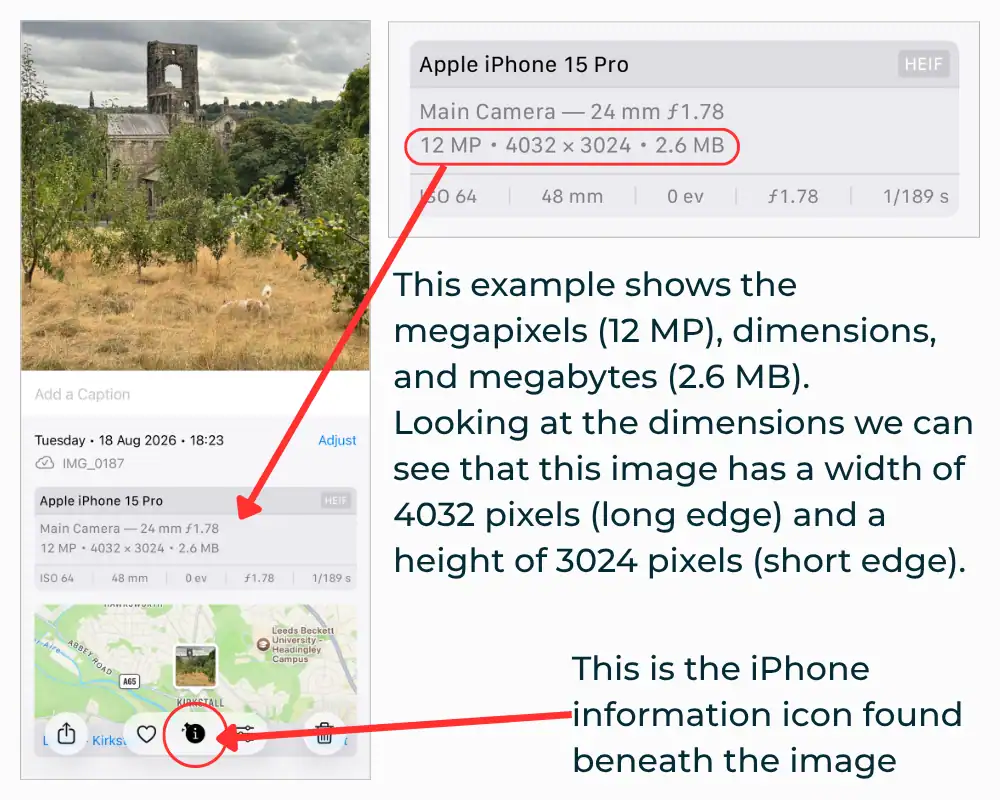
- Swipe up on the image or tap on the ‘info’ icon ⓘ beneath it.
Android
- Open the Google Photos or default Gallery app.
- Tap the photo you want to check.
- Swipe up on the image or tap on the three-dot menu icon (⋮) in the top or bottom corner.
- Select details or info to see the image resolution and dimensions listed in pixels.
Technical information
This will give you the technical information for the photo, including the date it was taken, the size, and the camera settings. The size of the photograph is shown in three different ways:
- resolution – megapixels (MP)
- dimensions – width and height in pixels
- file size – megabytes (MB)
See the image for an example. This is a screenshot from an iPhone, how your screen looks may vary.
Desktops or laptops
For Macs
- Open your photo in the Preview app.
- Select the ‘inspector’ icon ⓘ located on the panel above the photo.
- This will open a pop-up window.
- The image size is shown on the general info panel.
For PCs
- Open File Explorer and go to the folder containing your image.
- Right-click on the photo file you want to check.
- From this menu, select ‘properties’.
- In the properties window, go to the ‘details’ tab.
- The details tab will show you your image dimensions, file size, DPI, and more.
- The dimensions in pixels for your photo are under the ‘image’ heading.
Understanding resolution
Resolution describes how much detail an image contains, measured by the number of pixels it’s made up of. For example, a photo that is 3024 pixels wide and 4284 pixels high contains over 12 million pixels, known as 12 megapixels (MP). The more pixels an image has, the more detail it holds, and the larger it can be printed or displayed before that detail starts to blur.
Pixel density is a separate measurement. It describes how tightly those pixels are packed into a given area, and it depends on the size the image is printed or displayed at, not on the pixel count alone. For screens and digital images, pixel density is measured in pixels per inch (PPI). For printing, it’s measured in dots per inch (DPI), the number of ink dots a printer places within that same area. Shrinking an image down increases its density; stretching it out reduces it.
Cameras with a higher megapixel count capture more detail. Sensor size and lens quality also affect the final image quality.
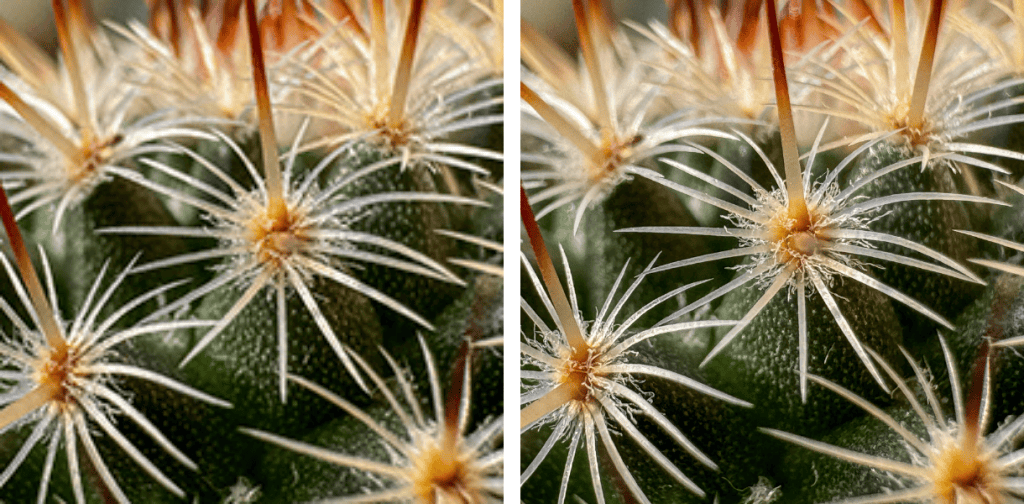
The example above of two images of a cactus provides a clear illustration of how a difference in resolution can alter the quality of the photo.
- The image on the left is 200 x 200 px, with a resolution of 72 PPI/DPI.
- The high-resolution image on the right is 3024 x 3024 px, with a resolution of 900 PPI/DPI.
- The more pixels in an image, the larger it can be without degradation.
Sensor size and lens quality
Megapixel count is not the only factor in image quality. Sensor size and lens quality also play a part.
A DSLR camera has a large sensor, often around 36 x 24mm on full-frame models. A bigger sensor gathers more light per pixel, giving clearer detail and better performance in low light, even at a lower megapixel count than a smaller sensor might have. The lens matters too: a well-made lens focuses light sharply and accurately onto the sensor, while a poor-quality lens blurs or distorts that light before it even reaches the sensor, limiting the detail the camera can capture no matter how many megapixels it has.
Smartphone sensors are far smaller than a DSLR’s, often only a few millimetres across. To compensate, many phones use a process called ‘pixel binning’: a high initial megapixel count is combined into a smaller number of larger, more light-sensitive pixels. Many Samsung phones use a 200-megapixel sensor but, by default, combine groups of adjacent pixels to output a sharper 12-megapixel image with better low-light performance than the full 200-megapixel image would give. iPhones follow a similar principle: recent models have a 48-megapixel main sensor but usually output 12-megapixel photos by combining pixels in the same way, unless you choose to shoot in full resolution.